Connect your Garmin account to AircraftMX
AircraftMX imports your flights directly from Garmin so your logs and timer values stay current automatically. Because Garmin manages the connection, you start the link from FlyGarmin — here's how, in five quick steps.
Works with 
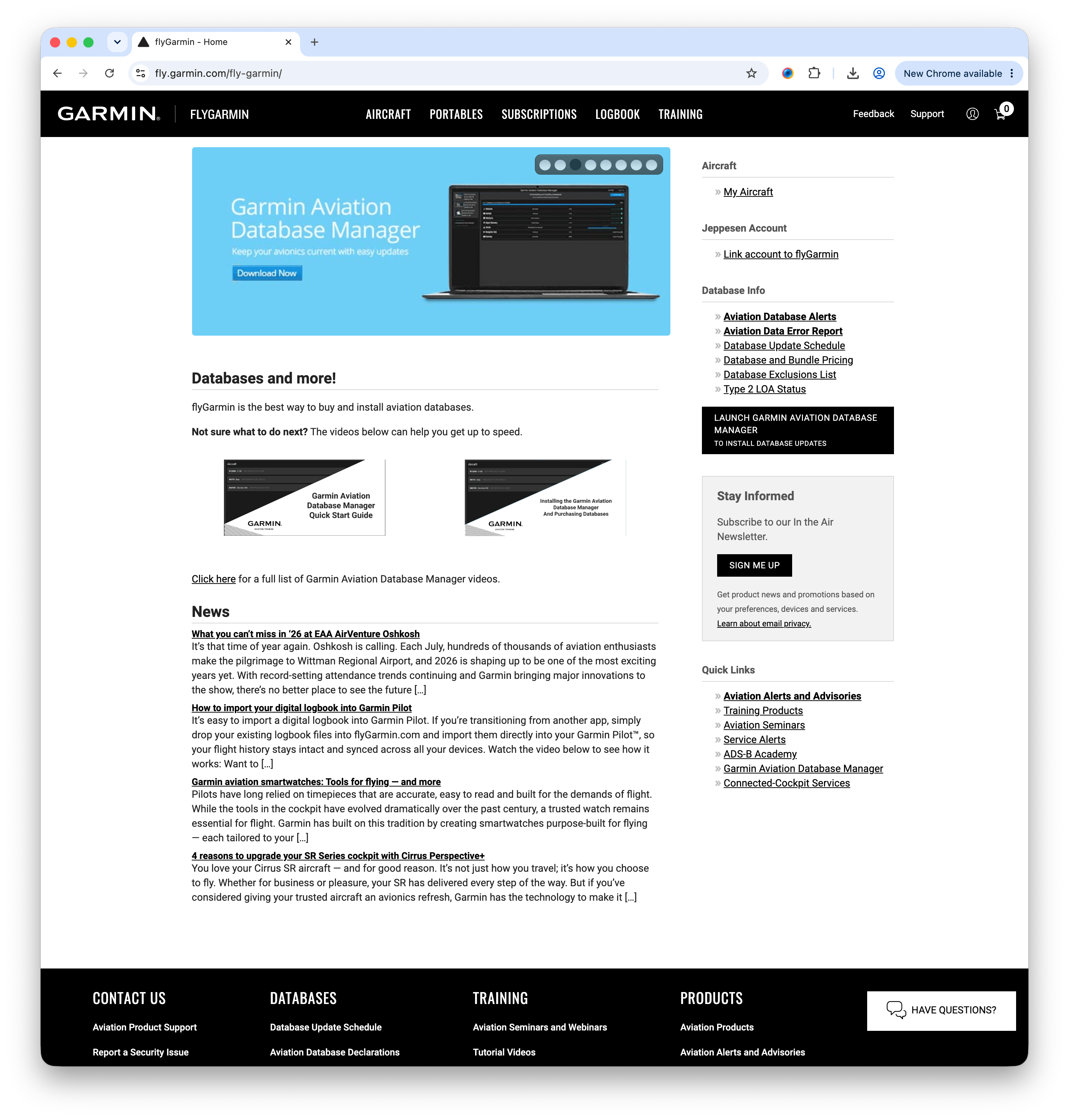
Sign in to FlyGarmin
Go to fly.garmin.com and log in to your FlyGarmin account. From the home page, open the Aircraft menu and choose My Aircraft.
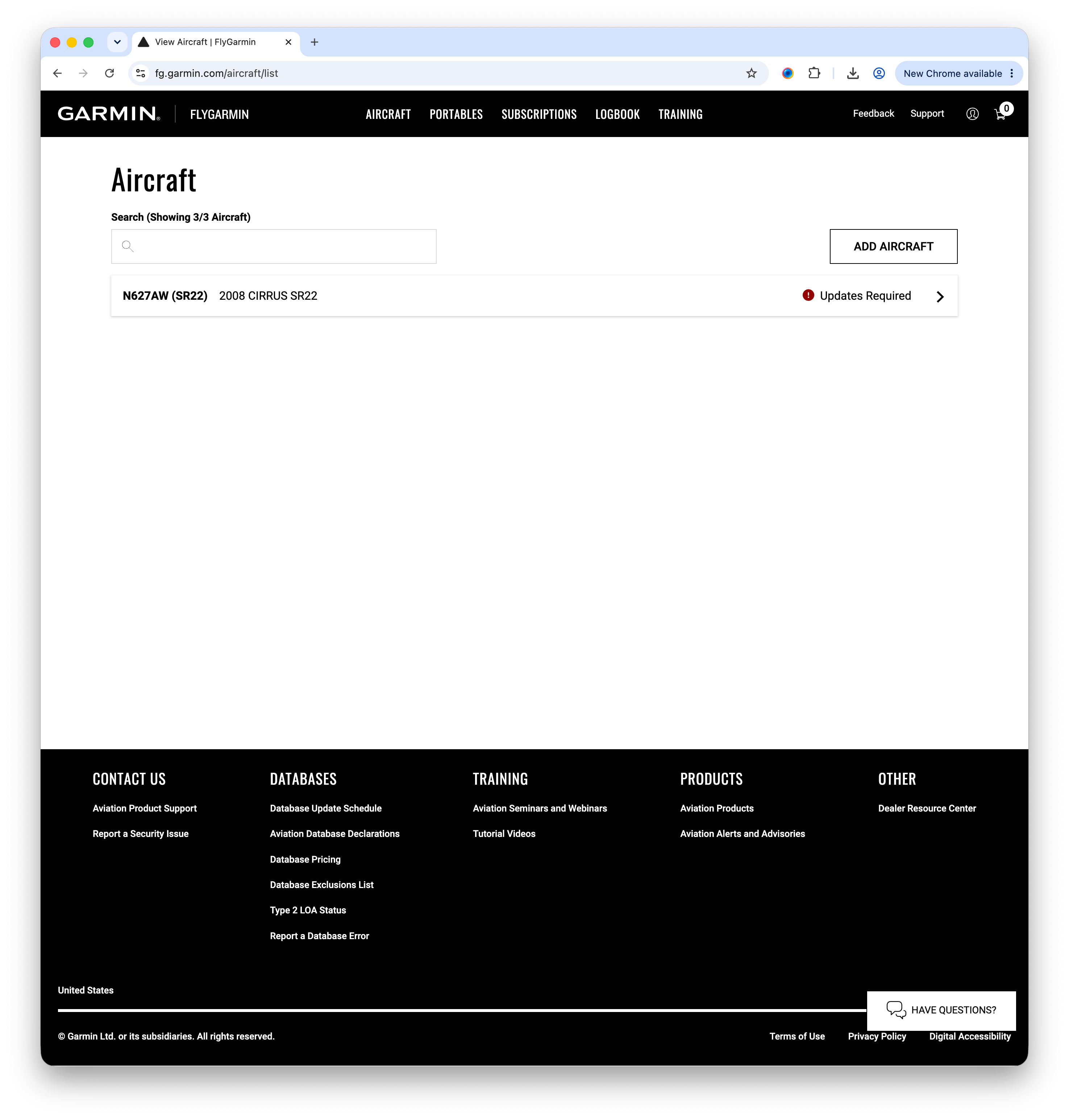
Select your aircraft
Your aircraft list shows every airplane on your Garmin account. Click the aircraft you want to connect to AircraftMX.
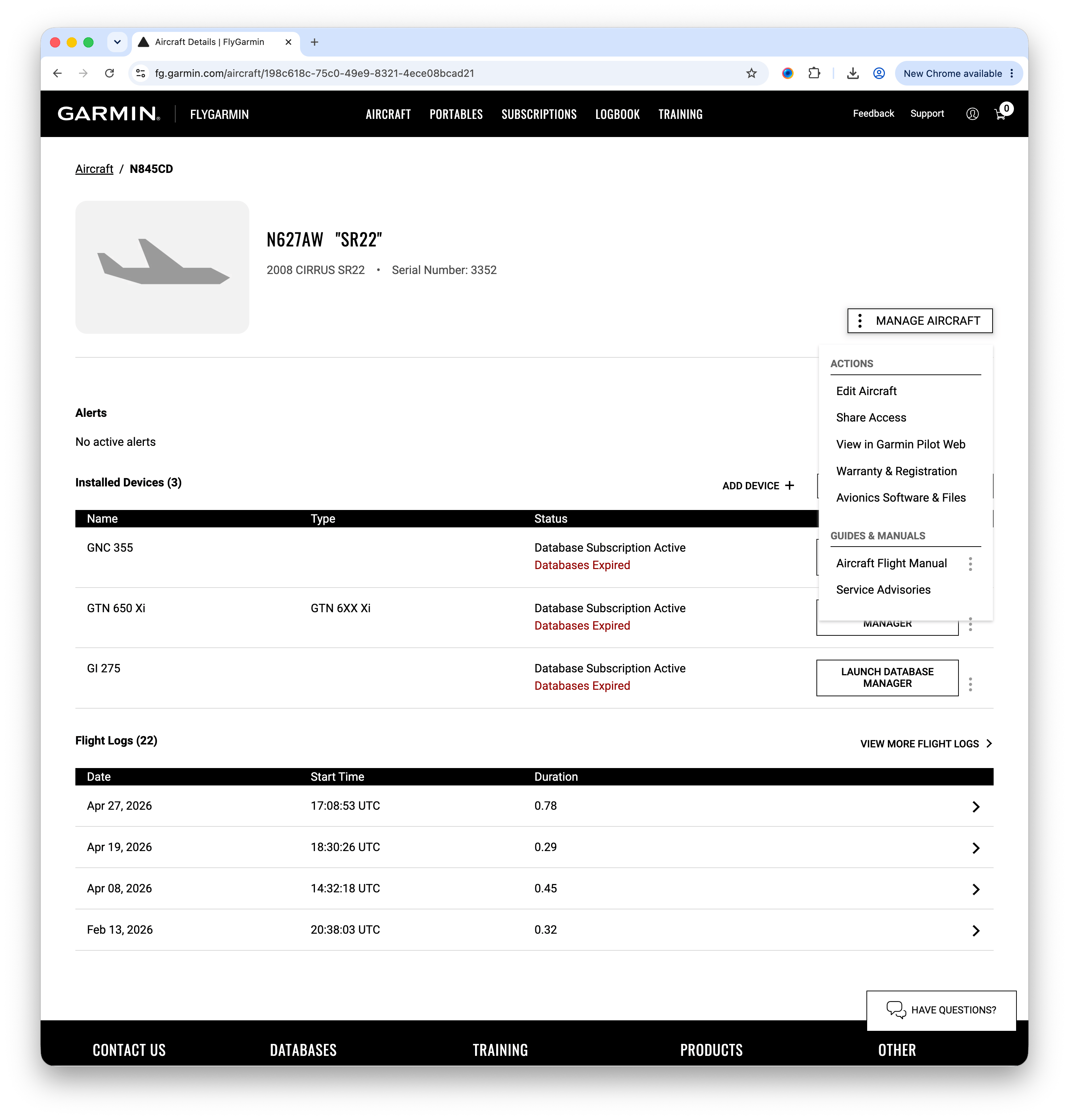
Open Manage Aircraft → Share Access
On the aircraft's detail page, click Manage Aircraft in the upper right, then choose Share Access from the menu.
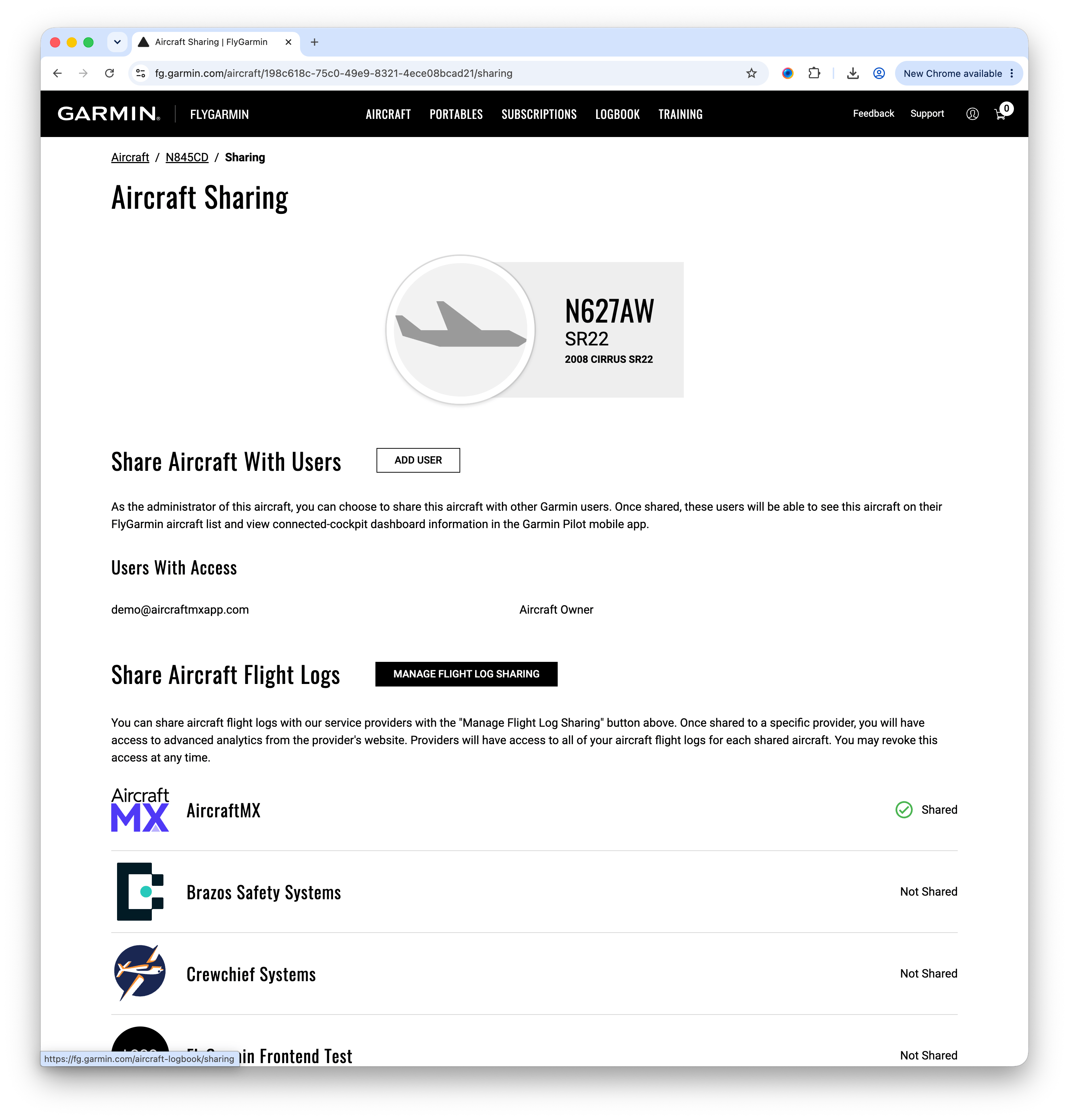
Manage flight log sharing
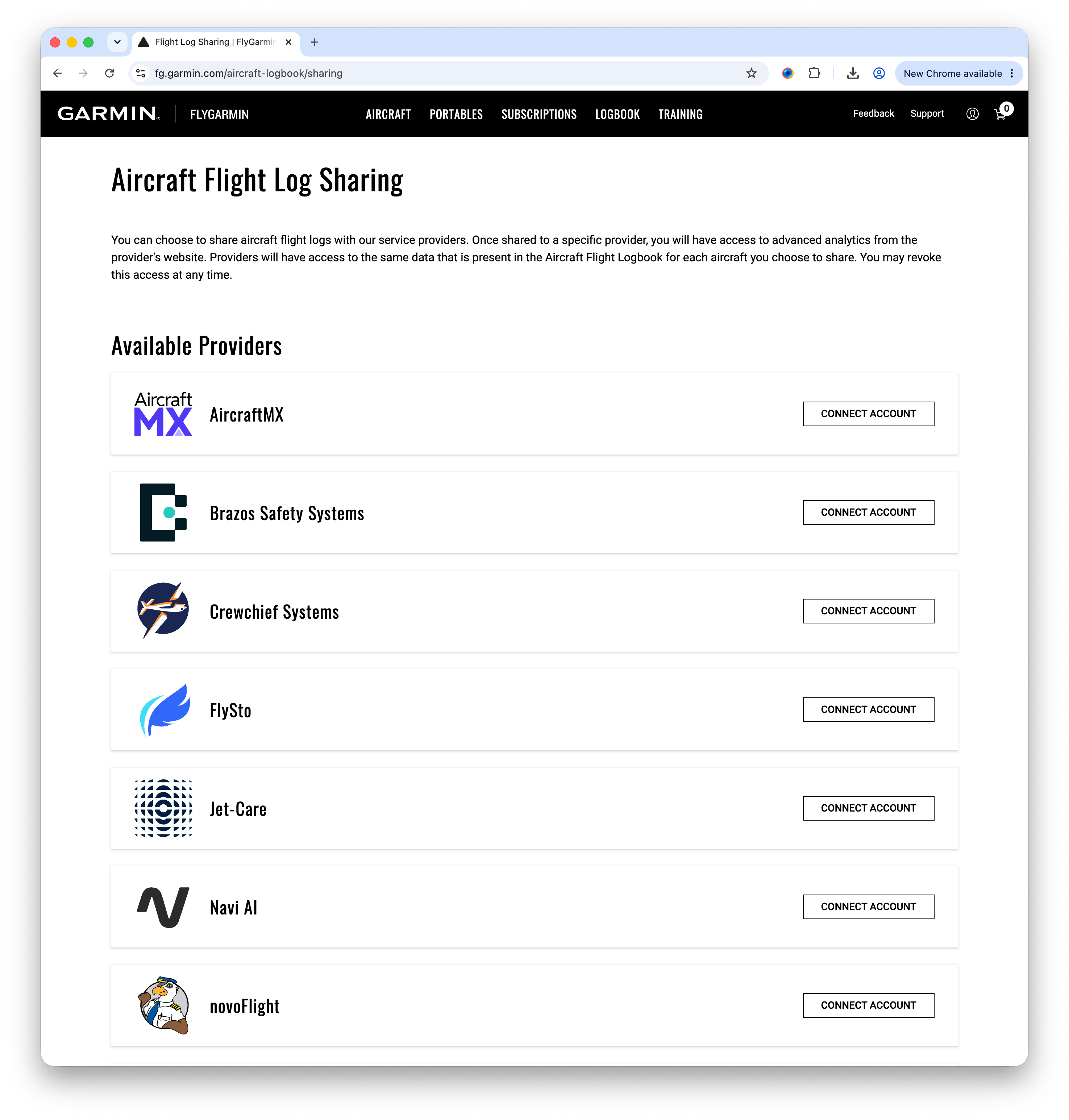
Scroll to the Share Aircraft Flight Logs section and click Manage Flight Log Sharing to see the providers you can connect.
Connect AircraftMX
Find AircraftMX in the list of available providers and click Connect Account. Garmin will send you to AircraftMX to finish linking — just sign in (or create a free account) and you're done.
That's it — your flights sync automatically
Once connected, each authorized aircraft appears in AircraftMX and new flights import on their own, keeping your flight logs and Hobbs, tach, and other timer values up to date. You can revoke sharing anytime from FlyGarmin.
Free for Garmin customers. No credit card required.