Timed Items
Create and edit timed items
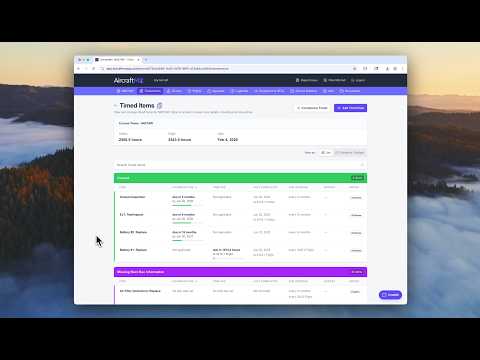
Timed items track every time-based maintenance requirement on your aircraft: inspections, recurring services, and component replacements. If you set up your aircraft with a template, the list is already filled in with common items for your make, model, and serial number.
You're not locked into the template. Part 91 operators in particular have latitude in setting intervals, so you can adjust any item to match how you maintain your aircraft.
Open your timed items
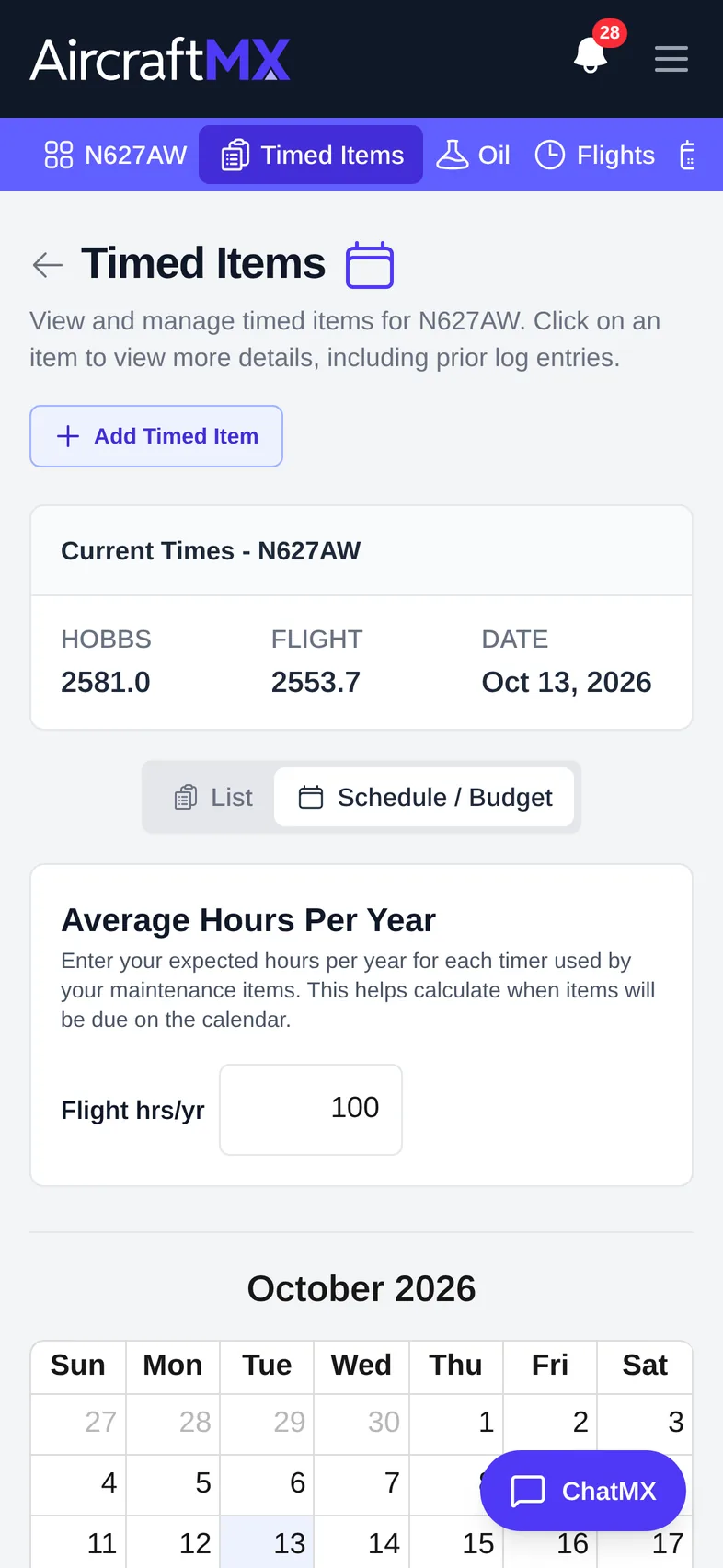
From your aircraft dashboard, click Timed Items. Each item shows its status, when it was last completed, and when it's next due.
Edit a timed item
- Click the item to open it.
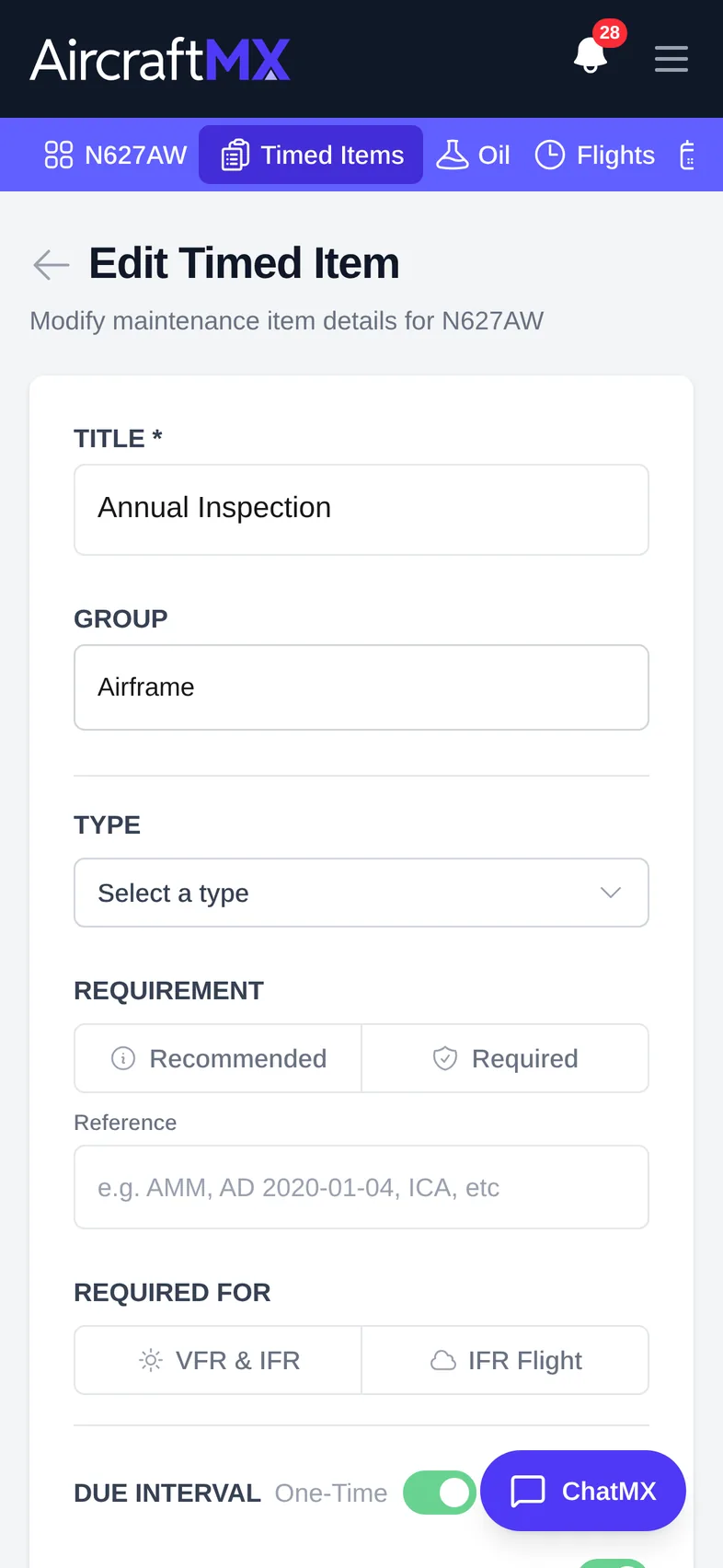
- Click Edit Item.
Settings you can change
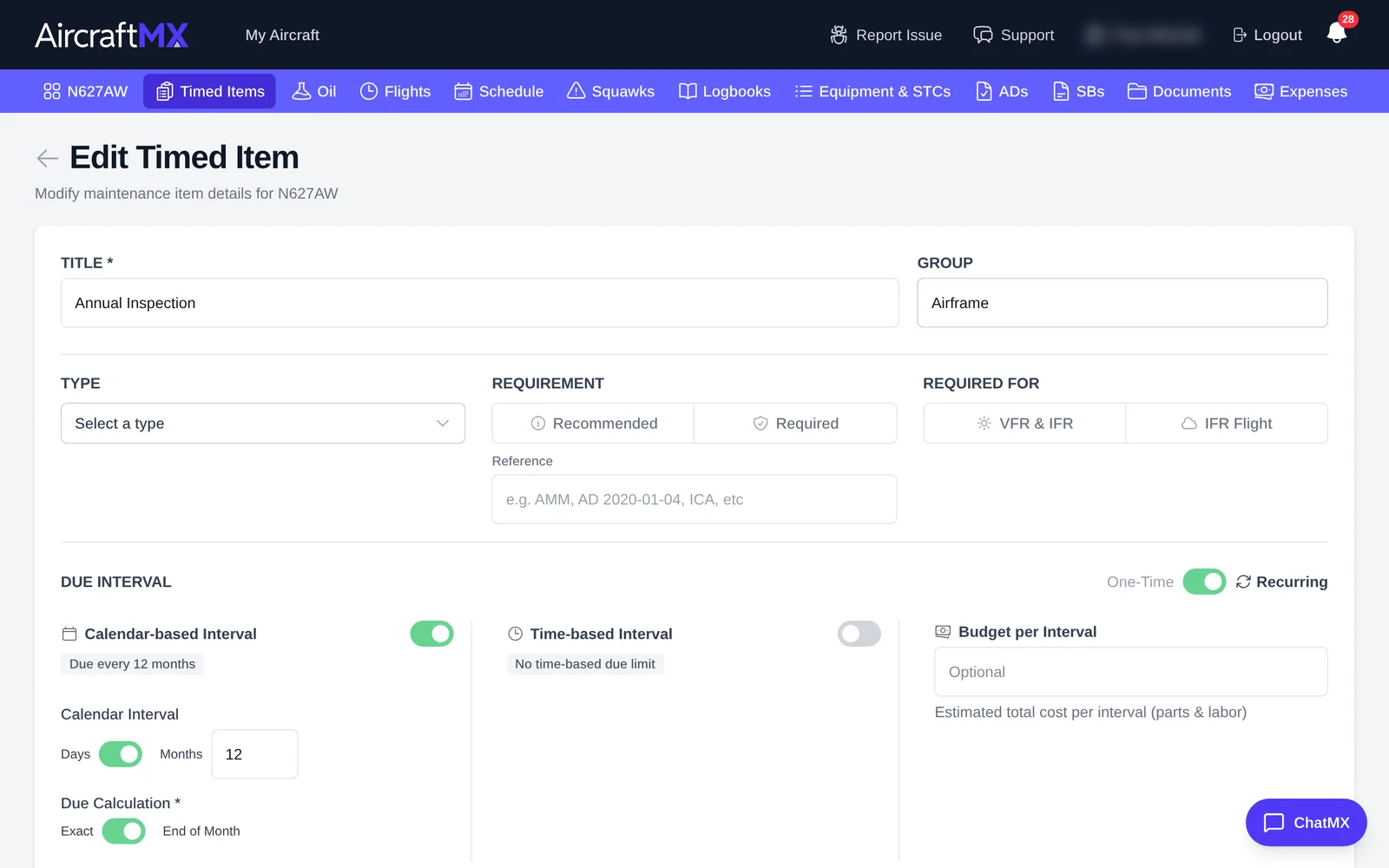
- Title and group: rename the item or move it to another group.
- Calendar interval: a time-based requirement, for example every 7 years. Choose an exact calendar cycle or an end-of-month cycle (useful for annuals).
- Hours interval: an hours-based requirement, and which timer it uses (usually flight time or tach).
- Recurring or one-time: most items recur; mark single-occurrence items as one-time.
- Estimated budget: the expected cost. AircraftMX uses it, with your average annual hours, to forecast maintenance spending.
- Last completed: the date and time the item was last done. Linking logbook entries can also update this automatically.
- Due-soon alert: when the item starts showing as DUE SOON. The defaults are 60 days before the calendar due date and 15 of the item's timer units before the time due (hours, if that timer is in hours). You can change both under Due Soon Alert Settings. The item shows as due soon when it is inside either window.
- Related items: link equipment, ADs, or service bulletins to keep records in sync.
Update when an item was last completed
You can update it two ways:
- Manually: enter the completion date and time in the edit view.
- From a logbook entry: link the entry to the item when you review it. This updates last-completed and next-due if the entry is newer than what's already recorded.
Once last-completed is set, AircraftMX calculates the next due date and time from your intervals.
Create a new timed item
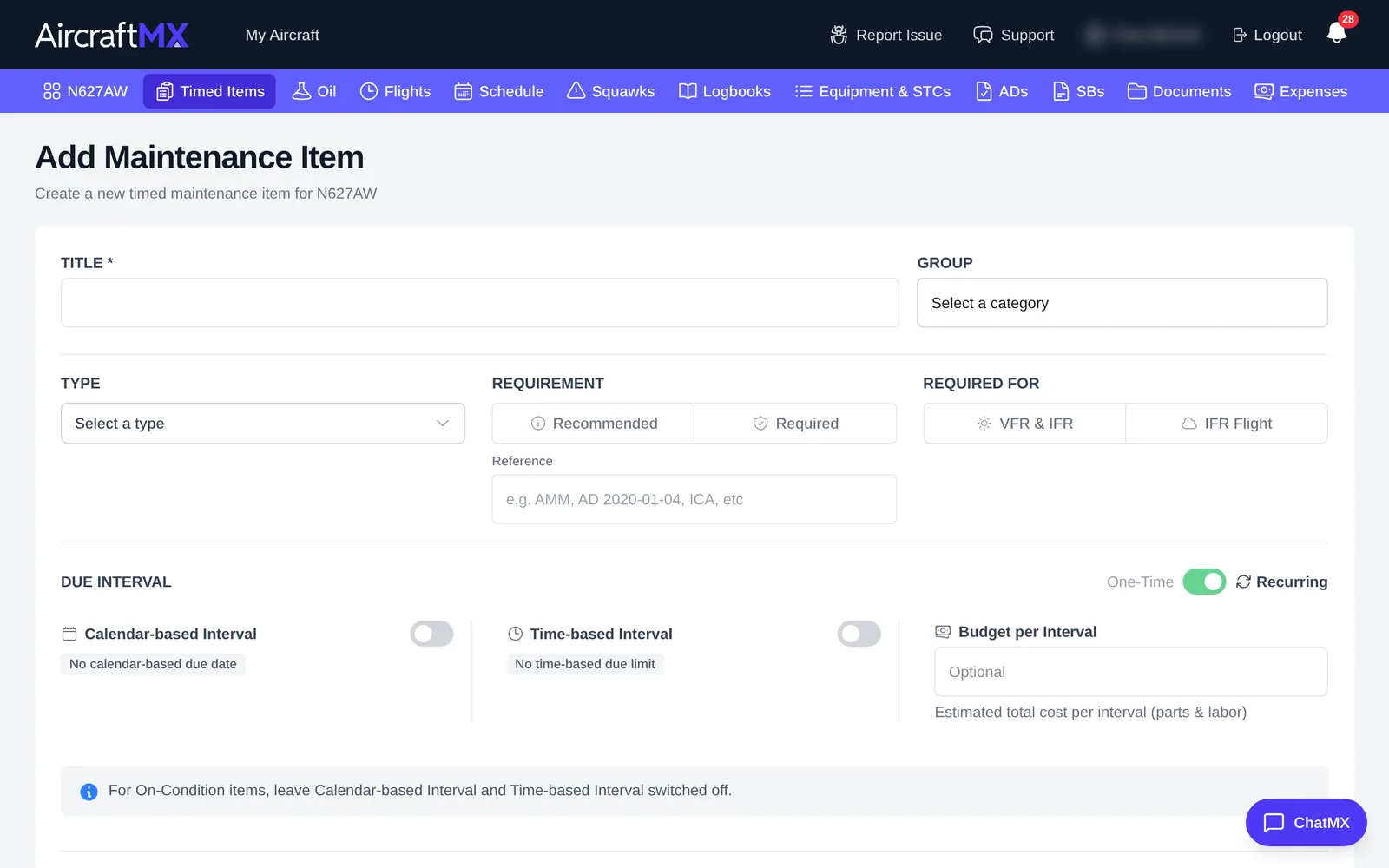
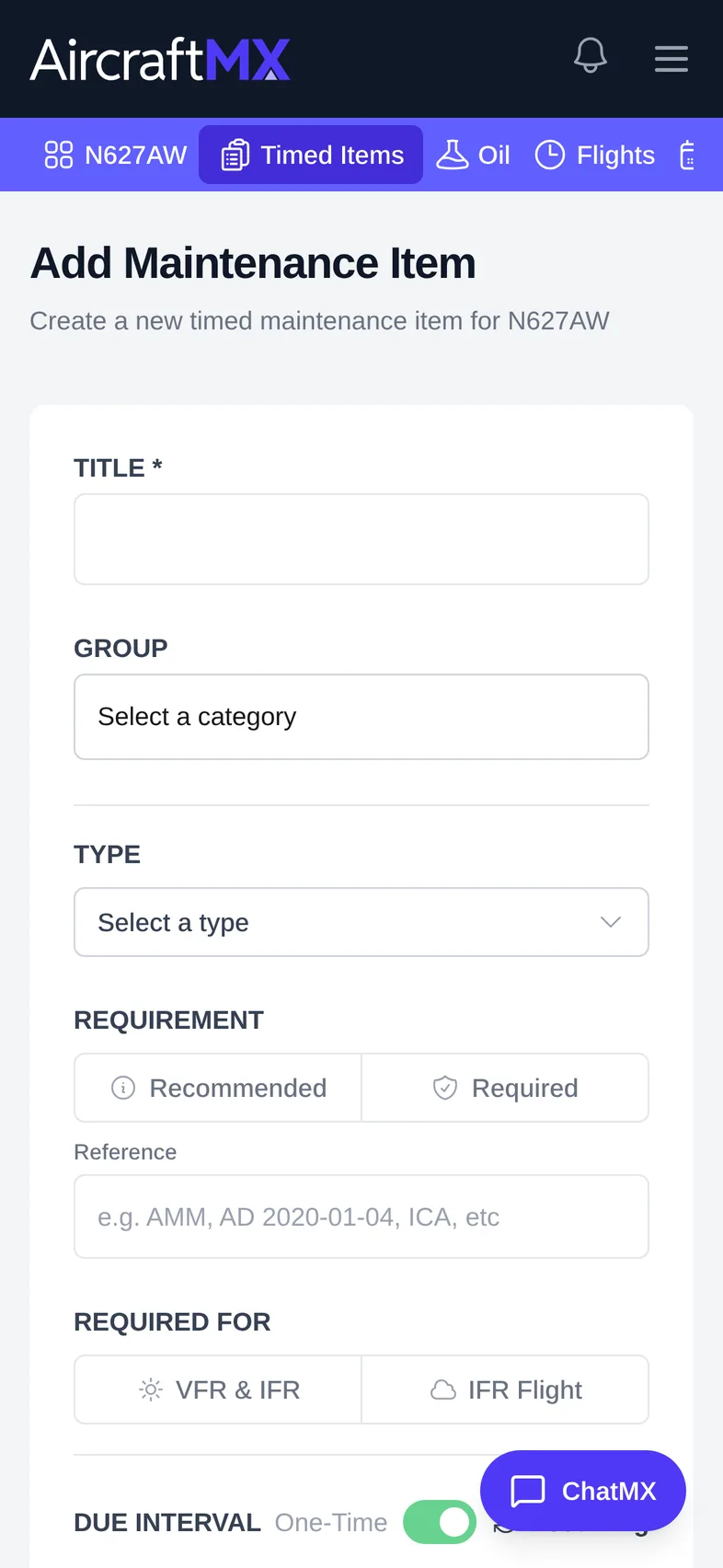
- Click Add Timed Item in the Timed Items list.
- Fill in the title, group, intervals, and any related equipment, ADs, or SBs.
- Save.
Copy timed items from another aircraft
You can copy timed items from another aircraft onto this one. You need to be an Owner or Manager on both aircraft, and both need an active subscription.
- On the aircraft you want the items on, open Timed Items.
- Click the copy icon next to Add Timed Item (its tooltip reads "Copy from Another Aircraft").
- Choose the aircraft to copy from.
- Choose the items and click Continue, then click Copy.
If no aircraft is listed, you need to be an Owner or Manager of another aircraft with an active subscription.
The new items are added to the list already on the aircraft. Existing items stay as they are. The confirmation tells you how many items will be added, and that existing items won't change. Items with a title already on this aircraft start unchecked; you can still select them.
The copy includes each item's settings: title, group, intervals, due-soon alerts, estimated budget, and notes. Last-completed dates and times are cleared, and next-due values are cleared with them. Enter Last completed afterward so AircraftMX can work out the next due.
Links to logbook entries, ADs, service bulletins, and equipment stay on the original aircraft. A cascading link between two timed items (one item satisfying another) is copied only when you select both items.
Hours-based items are matched to an enabled timer on this aircraft with the same name. Capitalization doesn't matter. If no timer has that name, and the timer in the same position is turned on, the item uses that timer and the list shows which one. If there is no match, the item is still copied and marked No matching timer; edit after copying. Open the item and choose a timer.
Tip: re-process your logbook entries afterward so they can match the new items. Open an entry that isn't verified and click Reprocess Transcription. You can also confirm matches with the Compliance Finder.
Track an item on condition
On condition means the item stays on the aircraft with no due date, so you can still link logbook entries to it.
- Open Timed Items and click the item.
- Click Edit Item.
- Under Due Interval, turn off Calendar-based Interval and Time-based Interval.
The item then shows ON CONDITION. A new item starts this way until you turn an interval on.
Budget forecasting
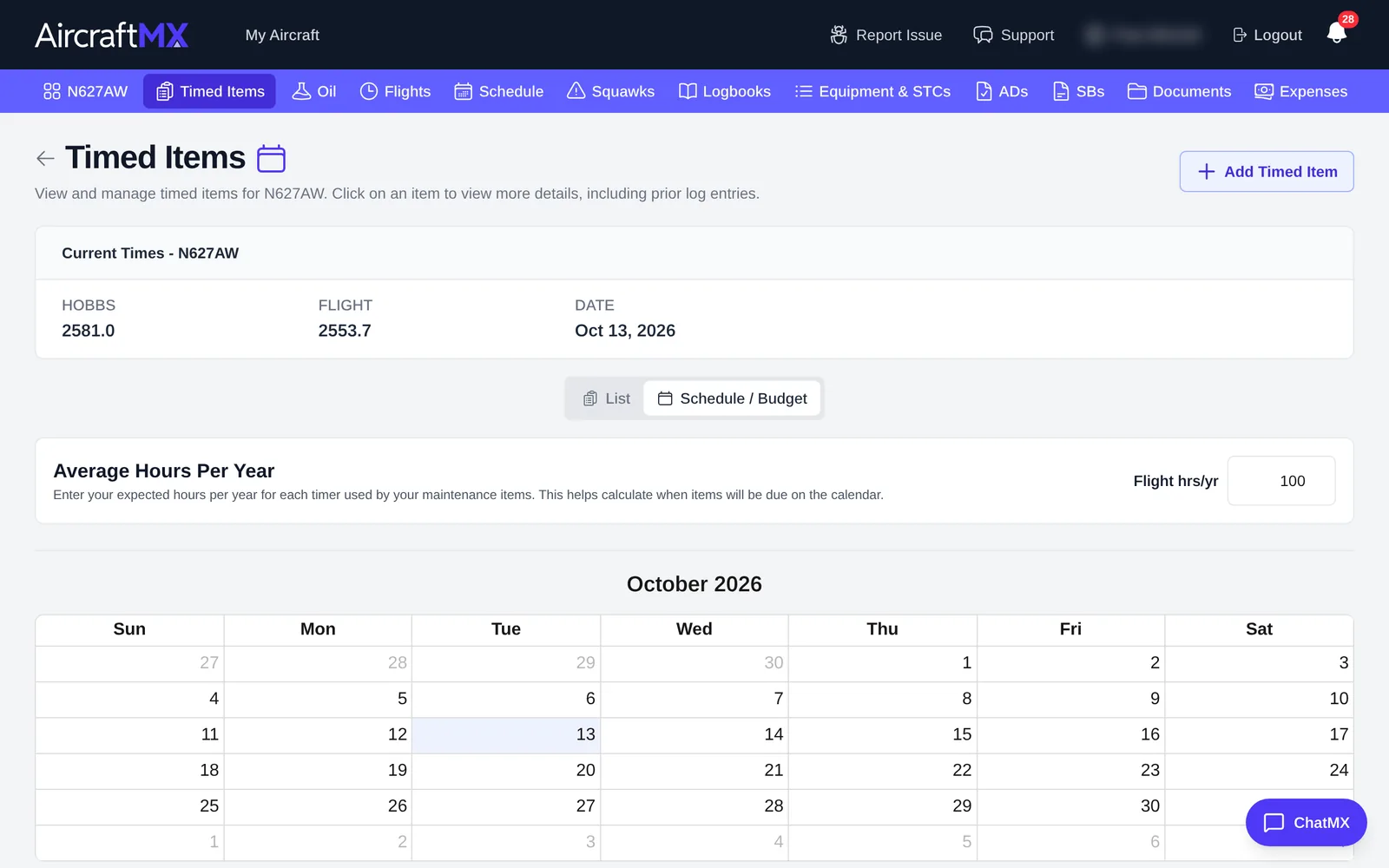
AircraftMX's budget predictor uses your timed items' cost estimates and your average annual hours to forecast maintenance spending by month and year.
On a phone
On a phone, the timed-items list is a single column; some table columns are cut off at the right edge, so open the item to see every detail.
Still stuck?
Contact us, or use Report Issue in the app. To send files, attach them from Report Issue.